 HomeLink Hub
Legal partners
How an agent or landlord invites lawyers, tracks invite status and opens a partner lawyer's profile.
Where it lives
| Route | View file | Access |
|---|---|---|
/legal-team | src/views/app/legal/legal-team.tsx | agent, landlord |
/legal-team?action=invite | same page, opens the invite dialog (used by the global search action "Invite a lawyer") | agent, landlord |
/legal-team/:id | src/views/app/legal/legal-profile-detail.tsx | agent, landlord |
The sidebar item is labelled Legal. API calls are in src/services/legal/legal-api.ts (base path /api/v1/legal). The :id in the profile route is the id of the partnership record, not the lawyer's user id.
Assigning a partner to a listing is covered in Legal verification. The lawyer's side is covered in the Lawyer Portal.
Before you start
- Signed in as an agent or landlord. The API allows these endpoints for agents, landlords and admins only.
- The lawyer must already have an account with the Lawyer role. An invite cannot create an account.
Partnership status
| API status | Badge | Meaning |
|---|---|---|
invite_pending | Invite Pending | Invite sent, the lawyer has not answered |
contracted | Contracted | Lawyer accepted and can be assigned to listings |
rejected | not shown | Lawyer declined. The record drops out of the list and a new invite can be sent |
Flow
Browse partners
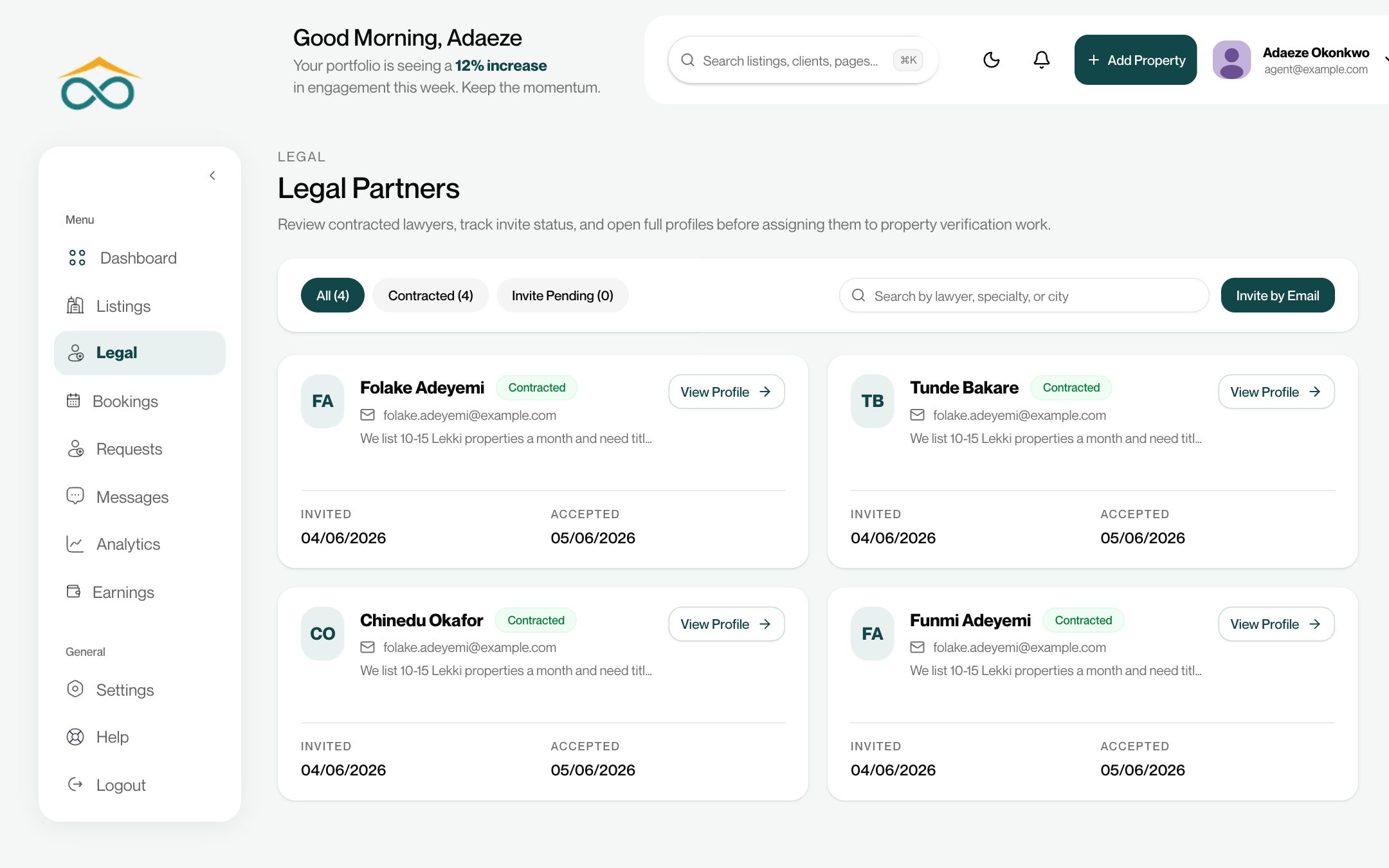
- Choose Legal in the sidebar. The page is headed "Legal Partners" and calls
GET /api/v1/legal/partners. - Three filter pills show counts: All (n), Contracted (n), Invite Pending (n).
- The search box filters as you type. Its placeholder says "Search by lawyer, specialty, or city", but it only matches the lawyer's name and the invited email.
- Each card shows the lawyer's initials, name, status badge, email, the invite note (one line), the Invited date and, once accepted, the Accepted date.
- View Profile opens
/legal-team/{partnershipId}.
Invite a lawyer by email
-
Press Invite by Email (or Invite a Lawyer on the empty state). The "Invite Lawyer by Email" dialog opens with the explanation "Enter the email address of a lawyer who is already signed up on the platform. If matched, their status becomes invite pending."
-
Fill in:
Field Rule Email (placeholder "lawyer@homelinkhub.org") Must not be empty. The format is not checked in the form; the API lower-cases and looks it up Message (placeholder "Write a short invite message") Must not be empty. Pre-filled with "We would like to engage you for legal review and title verification across our managed property portfolio." -
Send Invite stays disabled until both fields have text. It sends
POST /api/v1/legal/partnership-invites/emailwith{ "email": "...", "inviteNote": "..." }. -
On success the dialog closes, the fields reset, a toast reads "Invite sent successfully." and the list refetches with a new Invite Pending card.
-
On failure the toast shows the API message, or "Failed to send invite."
Cause API message No user with that email, or the user is not a lawyer "No registered lawyer found with this email" An invite to that lawyer is still pending "An invite is already pending for this lawyer" The lawyer already accepted "Lawyer is already contracted with you" Caller is not an agent, landlord or admin "You do not have permission to invite lawyers"
The same invite can be sent from inside the Assign Lawyer dialog on a listing, see Legal verification.
Open a partner profile
- Click View Profile on a card. The page re-uses
GET /api/v1/legal/partnersand picks the record whose id matches the URL. - The header shows the lawyer's name, the status badge and a disabled indicator button: Invite Pending or Ready for Assignment.
- The main card shows the bio (or "No bio added yet."), the invite note, and four tiles: Email, Location (or "Not provided"), Matters handled, Response rate.
- Assignment Readiness repeats the two numbers and a Current state line: "Can be assigned to legal verification work" when contracted, otherwise "Awaiting lawyer acceptance".
- Relationship Timeline lists "Invite sent" and, when present, "Accepted" with their dates.
- Back to Legal returns to
/legal-team.
The profile is view-only
States and edge cases
| Situation | What the user sees |
|---|---|
| List loading | Centred spinner |
| No partners, or none match the filter and search | "No legal partners found." with an Invite a Lawyer button |
| Profile loading | Centred spinner |
| Profile id not in the list (wrong id, or the lawyer rejected the invite) | "Lawyer profile not found." with Back to Legal |
| Lawyer accepts or rejects while the page is open | No live update. The list changes after a reload |
One email link lands on a not-found page
/legal-team/ followed by the property id. This route expects a partnership id, so the link shows "Lawyer profile not found."What happens next
- The lawyer receives an email, "You've Been Invited to Partner on HomeLink Hub", linking to
/legal/invitesin the lawyer portal. See Partnership invites. - When the lawyer accepts, the status becomes
contractedand the inviter is emailed "Your Legal Partnership Invite Was Accepted" with a link back to/legal-team. - A contracted lawyer becomes selectable in the Assign Lawyer dialog on every listing the inviter owns.