 HomeLink Hub
Sign up and verification
Creating an agent, landlord or lawyer account and confirming the email address.
Where it lives
| Route | View file | Access |
|---|---|---|
/auth/signup | src/views/auth/signup.tsx | public |
/auth/check-email | src/views/auth/check-email.tsx | public |
/auth/verify-email | src/views/auth/verify-email.tsx | public |
All three render inside src/layouts/AuthLayout.tsx: a white card over a dimmed photo, with the HomeLink logo top left. The logo and the card's close (X) button link back to the consumer app. The API calls are thunks in src/services/auth/auth-thunk.ts.
Before you start
- No account is needed. The pages are also reachable while signed in; nothing redirects a signed-in user away.
- Tenants and developers cannot sign up here. Step 2 links them to the consumer app instead ("Looking to rent or buy a home? Sign up on the HomeLink Hub app").
Flow
Sign up
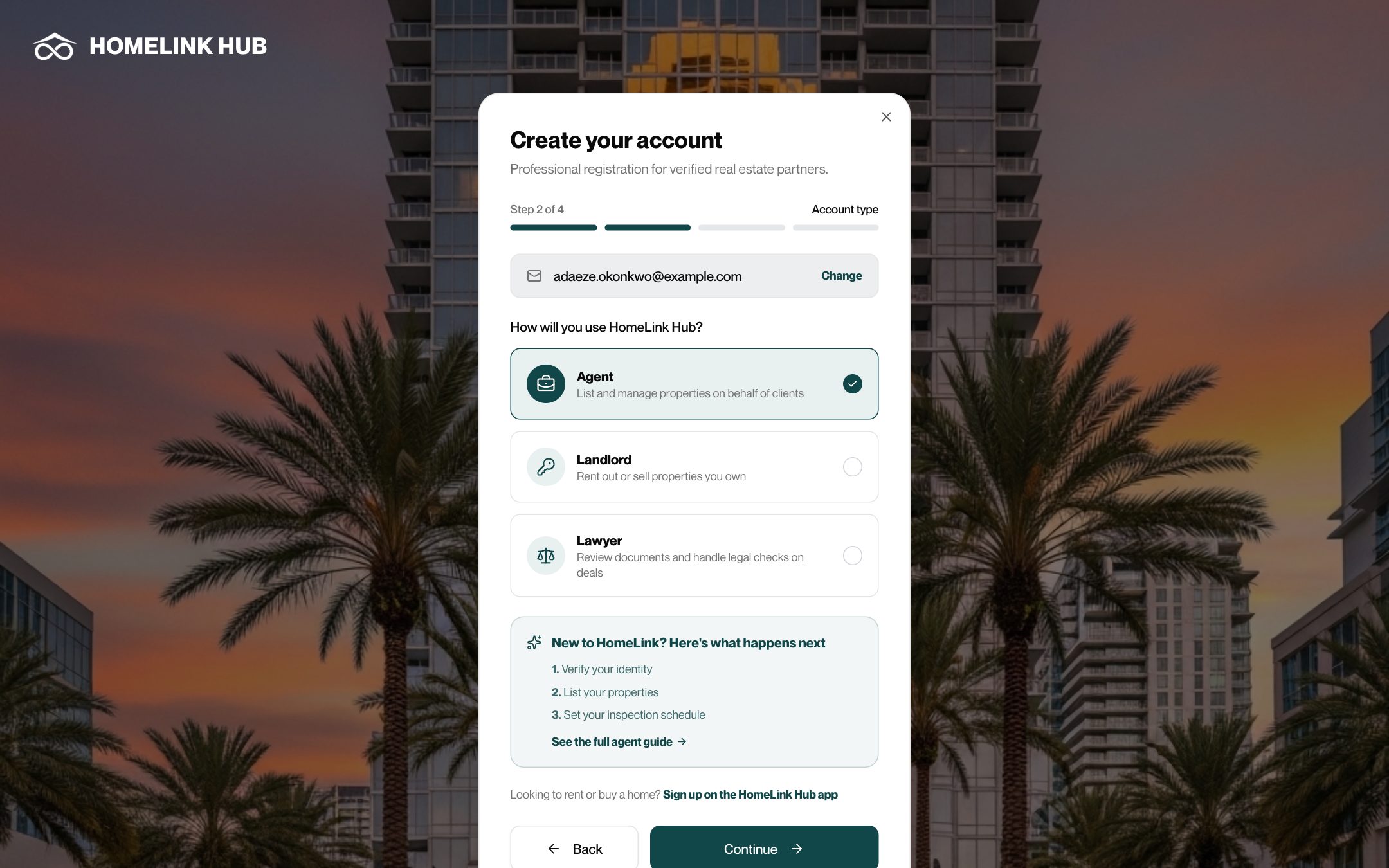
The form has four steps on one route. The heading is "Create your account" with the line "Professional registration for verified real estate partners." A progress row shows "Step N of 4", the step title and four bars. From step 2 onwards the chosen email is shown at the top with a Change link that jumps back to step 1.
-
Step 1, "Email". One field, Email Address. Press Continue.
Rule Message Empty "Email address is required" Must match something@something.somethingwith no spaces"Enter a valid email address" -
Step 2, "Account type". The question "How will you use HomeLink Hub?" with three radio cards:
Card Description shown Role sent Agent "List and manage properties on behalf of clients" AGENTLandlord "Rent out or sell properties you own" LANDLORDLawyer "Review documents and handle legal checks on deals" LAWYERContinuing without a choice shows "Choose how you'll use HomeLink Hub". Choosing Agent reveals a panel, "New to HomeLink? Here's what happens next", listing the first three steps of the agent guide and a See the full agent guide link. The link opens the agent intro dialog (see Onboarding and KYC) with the button Got it, continue signing up.
-
Step 3, "Your details".
Field Rule Message First Name Required, 2 to 50 characters after trimming "First name is required", "First name must be at least 2 characters", "First name must be 50 characters or fewer" Last Name Same as first name "Last name is required", and so on Phone Number Required. Only digits, spaces, brackets, hyphens and one leading +. Between 7 and 15 digits."Phone number is required", "Enter a valid phone number" -
Step 4, "Secure your account".
Field Rule Message Password Required, 8 to 128 characters "Password is required", "Password must be at least 8 characters", "Password must be 128 characters or fewer" Confirm Password Required, must equal Password "Please confirm your password", "Passwords do not match" A strength label sits beside the Password field: "TOO SHORT" under 8 characters, "MODERATE" for 8 to 11, "STRONG PASSWORD" for 12 or more. It is based on length only. Each field has a show/hide eye button.
-
Press Create Account. Every field from every step is validated again; if one fails the form jumps back to the first step with an error. Otherwise the button shows "Creating account…" and the app sends
POST /api/v1/auth/signupwithfirstName,lastName,email,phone,passwordandrole(names, email and phone are trimmed). -
On success a toast says "Account created! Please check your email to verify." and the app navigates to
/auth/check-email, passing the email in router state. Nothing is written to storage and the user is not signed in. -
On failure a toast shows the API's message, or "Signup failed. Please try again." The user stays on step 4.
On steps 2 to 4 a Back button returns to the previous step. "Already have an account? Sign in" goes to /auth/signin.
Validation is per step
Check your email
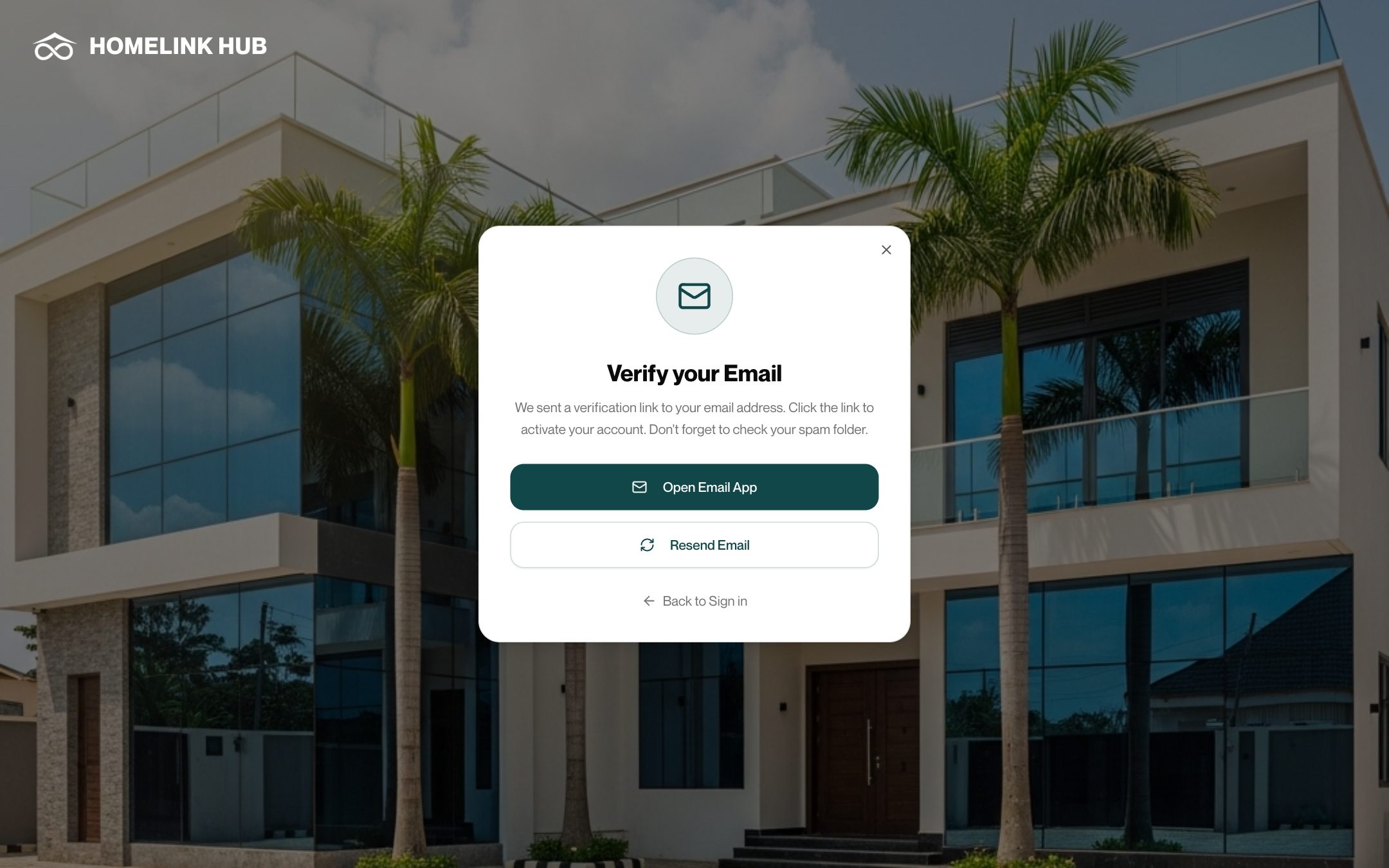
- The screen shows "Verify your Email" and "We sent a verification link to your email address. Click the link to activate your account. Don't forget to check your spam folder."
- Open Email App opens a blank
mailto:link, which launches the device's default mail client. - Resend Email sends
POST /api/v1/auth/resend-verificationwith theemailfrom router state.- Success toast: "Verification email resent. Please check your inbox."
- Failure toast: the API message, or "Failed to resend. Please try again."
- Back to Sign in goes to
/auth/signin.
Verify email
The link in the verification email opens /auth/verify-email?token=....
- The page shows "Verifying your email…" and immediately sends
GET /api/v1/auth/verify-email?token=.... The call runs once per page load. - Success: "Email Verified!" with "Email verified successfully. You can now sign in." and "Redirecting to sign in in 5 seconds…". After 5 seconds the app goes to
/auth/signin. Sign In Now goes there immediately. - Failure: "Verification Failed" with the API message, or "Invalid or expired verification link." Buttons: Go to Sign In and Back to Sign Up.
Verifying does not sign the user in. They always land on the sign-in page.
States and edge cases
- Opening
/auth/check-emaildirectly. The email only travels in router state. Without it, Resend Email shows the toast "Email address not found. Please sign up again." and sends nothing. - No token on the verify link. The page goes straight to "Verification Failed" with "Verification token is missing. Please use the link from your email." No request is sent.
- Email already registered, weak password, and similar. These are decided by the API. The client just shows the returned message as a toast.
- Loading. The submit button is disabled while the sign-up request is in flight. Resend Email shows a spinner and is disabled while resending.
- Google sign-up. There is no Google button on the sign-up form. Google appears only on the sign-in page.
What happens next
- The API sends the verification email (the client only shows the confirmation copy).
- After verifying and signing in, an agent whose account is not yet KYC verified is taken to onboarding. A landlord goes to the dashboard home. A lawyer goes to
/legal. See Sign in and password reset.
Signing in before verifying