 HomeLink Hub
Settings
Every section of Account Settings, covering profile, address, credentials, notifications, security, payments, inspection availability and inspection fee.
Where it lives
| Route | Section | Component file | Access |
|---|---|---|---|
/settings | Profile Information (default) | src/views/app/settings/components/profile-information.tsx | agent or landlord |
/settings?section=address | Address Information | address-information.tsx | agent or landlord |
/settings?section=credentials | Account Credentials | account-credentials.tsx | agent or landlord |
/settings?section=notifications | Notifications Preferences | notifications-preferences.tsx | agent or landlord |
/settings?section=security | Security | security.tsx | agent or landlord |
/settings?section=billing | Payments & Billing | payments-billing.tsx | agent or landlord |
/settings?section=availability | Inspection Availability | agent-availability.tsx | agent only |
/settings?section=inspection-fee | Inspection Fee | inspection-fee.tsx | agent only |
The page shell is src/views/app/settings/settings.tsx. All requests are in src/services/settings/settings-api.ts (RTK Query, base path /api/v1/user).
Before you start
- Signed in as an agent or landlord. Lawyers have their own settings page under
/legal/settings. - Ways in: Settings in the sidebar, Account in the profile menu, or a settings entry in global search (which opens the matching section).
Flow
Open a section
- Opening
/settingssendsGET /api/v1/user/profile. Every section reads from this one response and shows skeletons until it arrives. - Pick a section from the "Account Settings" list (a left column on desktop, a scrolling chip row on smaller screens). The choice is written to the URL as
?section=NAME, so links and refreshes open the same section. Profile is the default and leaves the URL clean. - The two agent-only sections appear only when the profile's role is
AGENT. For anyone else, a URL naming them falls back to Profile Information.
Most sections follow one pattern: edit, then Save Changes, or Discard Changes to reset the form to the last loaded profile. A successful save refetches the profile.
Profile Information
| Field | Notes |
|---|---|
| First Name, Last Name | Free text |
| Email Address | Free text |
| Phone Number | Free text |
| Agency / Business Name | Free text |
| Gender | Male, Female, Other, Prefer not to say |
| Professional Bio | At most 500 characters; the counter reads "N / 500 characters" |
Save Changes sends PUT /api/v1/user/personal-info with firstName, lastName, email, phone, businessName, bio and, when chosen, gender. Toast: "Profile updated successfully.", or the API message, or "Failed to update profile." There is no client-side validation; the API decides what is acceptable.
Avatar buttons are placeholders
The topbar keeps the old name
user object stored at sign-in. Saving the profile does not update it, so a changed name or email shows in the topbar only after the next sign-in.Address Information
- Addresses starts with one line. Add address adds another, up to 10. The bin icon removes a line when there is more than one.
- Fill in Country, State and Postal Code as needed. All are optional free text.
- Save Changes sends
PUT /api/v1/user/addresswithaddresses(blank lines removed),country,stateandpostalCode. Toast: "Address updated successfully.", or the API message, or "Failed to update address."
Account Credentials
Three cards.
| Card | What works |
|---|---|
| Email Address | Current Email is shown read-only. The New Email field and Save Email Changes button are not connected to anything. |
| Linked Social Accounts | Display only. The Google row shows a hard-coded sample address and a Disconnect button; the LinkedIn row shows "Not connected" and Connect. Neither button does anything. |
| Danger Zone | Account deletion, below. |
To delete the account:
- Press Delete Account. The Danger Zone text warns "Deleting your account is permanent. All property data, leads, and transaction history will be purged. This action cannot be undone."
- A dialog repeats that the action is "permanent and irreversible". Press Yes, Delete My Account (or Cancel).
- The app sends
DELETE /api/v1/user/account. The button shows "Deleting…". - Success toast: "Account deleted." and the dialog closes. Failure toast: the API message, or "Failed to delete account."
Deleting does not sign the user out
Notifications Preferences
A grid of five event types (New Messages, Property Inquiries, Inspection Bookings, Payment Confirmations, System Updates) against three channels (In-App & Push, Email, SMS). SMS carries a "Soon" tag and its switches are disabled.
- Flip the switches. Nothing is sent until you save.
- Save Preferences sends
PUT /api/v1/user/notification-preferenceswith all five rows. Toast: "Notification preferences saved.", or the API message, or "Failed to save preferences." - Discard Changes restores the loaded values.
Saving also stamps notificationPreferencesConfirmedAt on the profile, which is what marks the Notifications step of onboarding as done.
Security
The section is headed "Security & Privacy" and has four cards.
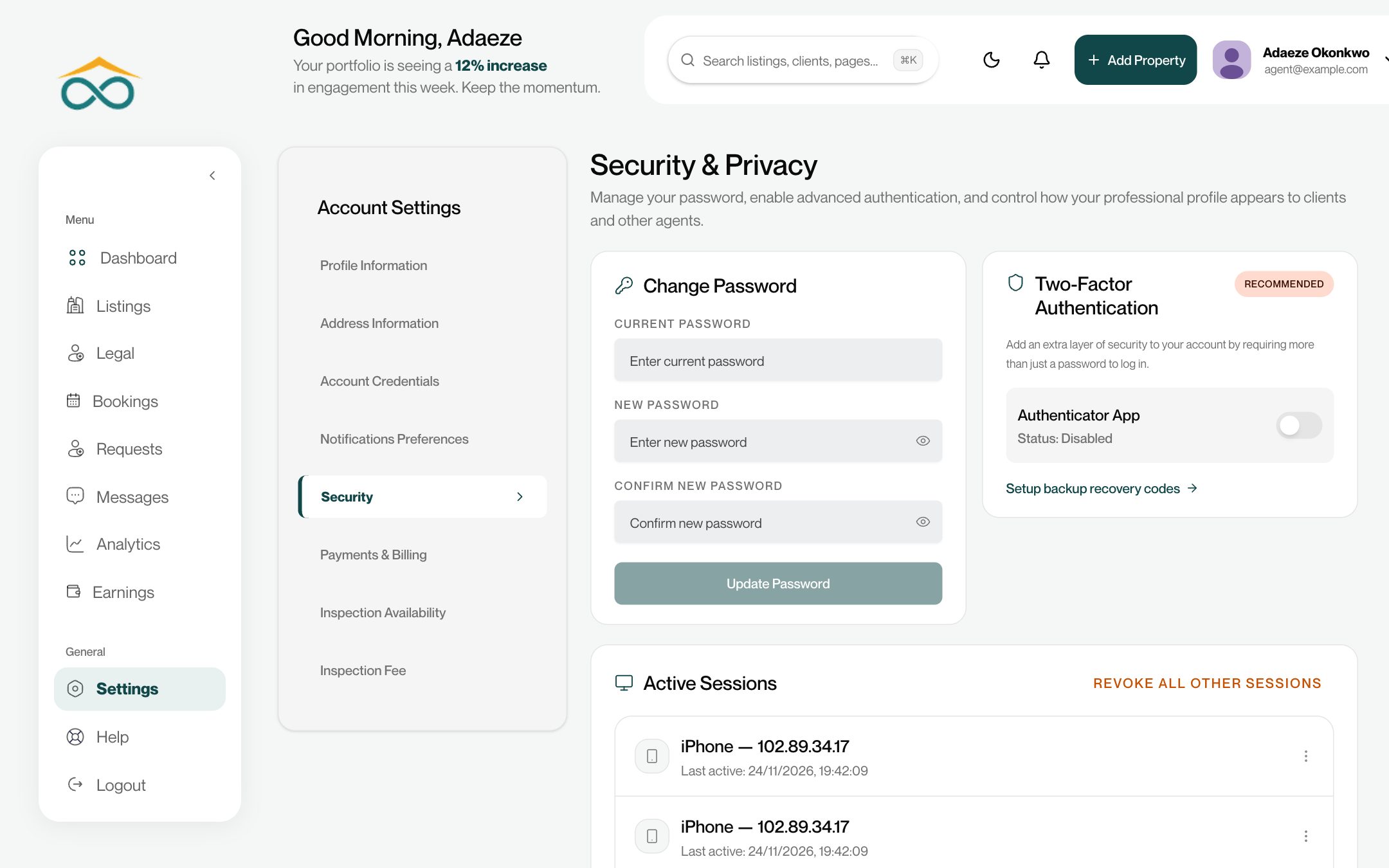
Change Password
-
Fill in Current Password, New Password and Confirm New Password. Update Password stays disabled until all three have a value.
Check Toast New and confirm differ "New passwords do not match." New password under 8 characters "New password must be at least 8 characters." -
The app sends
POST /api/v1/user/change-passwordwithcurrentPasswordandnewPassword. -
Success toast: "Password changed successfully." and the three fields are cleared. Failure toast: the API message, or "Failed to change password." The user stays signed in.
Two-Factor Authentication
- The card shows "Authenticator App" with "Status: Enabled" or "Status: Disabled", read from
twoFactorEnabledon the profile. - Flipping the switch sends
POST /api/v1/user/enable-2faorPOST /api/v1/user/disable-2fa, with no body. - Toast: "Two-factor authentication enabled." or "Two-factor authentication disabled.", or the API message, or "Failed to enable 2FA." / "Failed to disable 2FA."
Two-factor is a flag only in this app
Active Sessions
- The list comes from
GET /api/v1/user/active-sessions. Each row shows the device, location and "Last active" time, with a phone or monitor icon chosen from the device name. - Revoke All Other Sessions sends
POST /api/v1/user/logout-all-devices. Toast: "All other sessions revoked." or "Failed to revoke sessions." - The three-dot button on each row does nothing; a single session cannot be revoked from here.
Privacy Controls
| Switch | Description shown |
|---|---|
| Public Profile Search | "Allow search engines and clients to find your professional profile outside the platform." |
| Transaction History Visibility | "Show your verified past transactions to other licensed agents for networking purposes." |
Save all Settings at the bottom sends PUT /api/v1/user/privacy-settings with both values. Toast: "Privacy settings saved.", or the API message, or "Failed to save privacy settings." Despite its name, this button and Discard Changes next to it only affect the two privacy switches; password and two-factor changes apply as soon as they are made.
Payments & Billing
The overview (headed "Payments & Billings") loads GET /api/v1/earnings?page=1&limit=5 and shows:
| Area | Content |
|---|---|
| Lifetime Earnings | Net total, with "₦N this month" underneath |
| Pending Payouts | Net amount awaiting release, with "Released once each deal completes" or "Nothing awaiting release" |
| Bank Account Details | Bank name, account number masked to its last four digits, account holder, and a Verified or Unverified badge |
| Preferred Payout Method | "Direct Bank Transfer" (shown as selected once bank details exist) and "Paystack Integration · Setup required". Display only |
| Payout History | A table of Date, Property Reference, Amount and Status |
Payout statuses: PAID OUT, IN ESCROW, PENDING, DISPUTED, CANCELLED. Five rows are shown; View All Transactions reloads with up to 50.
To change bank details:
- Press Edit Details. The section switches to "Edit Bank Details" (same route, no URL change).
- Choose Bank Name from the searchable list (
GET /api/v1/user/banks), then type the 10-digit Account Number. - Half a second later the app sends
POST /api/v1/user/bank-details/verifyand fills Account Holder Name with the name the bank returned. The name cannot be typed. - SWIFT/IBAN (optional) accepts 8 to 34 letters or digits.
- Save Changes validates and sends
PUT /api/v1/user/bank-details. Toast: "Bank details updated successfully." and the overview returns. Cancel discards.
Validation messages are the same as the Payment Details step of onboarding: "Select your bank.", "Enter your account number.", "Account number must be exactly 10 digits.", "We could not confirm this account. Check the number and bank.", "Account holder name is filled in once your account is verified." and "Enter 8-34 letters or digits, with no spaces." Any of them also raises the toast "Please fix the highlighted bank details."
In the edit view, "Review Statements" simply returns to the overview, and "Contact Support" has no click handler.
Inspection Availability (agents)
| Field | Options | Default when never saved |
|---|---|---|
| Available Days | Monday to Sunday, any combination | none |
| Start Time, End Time | Time pickers | 09:00 and 17:00 |
| Time Slot Duration | 15 min, 30 min, 45 min, 1 hour, 1.5 hours, 2 hours | 1 hour |
Save Changes sends PUT /api/v1/user/agent-availability with availableDays, dayStartTime, dayEndTime and slotDurationMinutes. Toast: "Availability settings updated.", or the API message, or "Failed to update availability." The client does not check that the end time is after the start time or that a day is selected.
Inspection Fee (agents)
- Drag the slider to set the flat fee clients pay to book an inspection. Range ₦1,000 to ₦50,000 in steps of ₦500. An account with no saved fee starts at ₦5,000.
- The page shows the chosen amount, a "What you earn" note, and three bands that highlight as you move: "Most competitive" (up to ₦15,000), "Moderate fee" (up to ₦30,000) and "Premium fee" (above that).
- Save Changes sends
PUT /api/v1/user/inspection-feewithinspectionFee. Toast: "Inspection fee updated.", or the API message, or "Failed to update inspection fee." - Discard returns the slider to the saved value. Both buttons are disabled until the value differs from the saved one.
The advisory note explains that "A small platform fee is added on top of your fee at checkout, so clients pay slightly more than the amount you set here."
States and edge cases
- Loading. Fields show skeletons while the profile loads; sessions and payouts have their own skeleton rows.
- Payout history failed. "We couldn't load your payout history. Please try again shortly." and the Lifetime Earnings line reads "Earnings unavailable right now".
- No payouts. "No payouts yet. Completed property transactions will appear here."
- Bank list failed to load. Bank Name and Account Holder Name become plain text inputs and no account lookup runs.
- Expired session. Saves fail with their generic failure toast; the page does not redirect to sign-in.
- Landlord opening an agent-only link. Profile Information is shown instead.
Settings that are not here
GET /api/v1/settings.What happens next
- Bank details are the payout destination used by earnings and withdrawals (documented in the earnings section).
- Availability and the inspection fee apply to inspection bookings on all of the agent's listings, per the on-screen copy.
- Business name, bank details, notification preferences and availability also count as completed steps in onboarding.