 HomeLink Hub
Create a listing
The three-step form for adding a property, from basic details to saving a draft or submitting for verification.
Where it lives
| Route | View or component file | Access |
|---|---|---|
/listings/create | src/views/app/listings/create-listing.tsx | signed-in, agent or landlord |
| Step 1 | src/views/app/listings/components/step-basic-info.tsx, src/components/places-autocomplete.tsx | same |
| Step 2 | src/views/app/listings/components/step-media-amenities.tsx, amenity-grid.tsx | same |
| Step 3 | src/views/app/listings/components/step-review.tsx | same |
The create request is createListing in src/services/listings/listings-api.ts. Photo handling in step 2 has its own page: Listing photos and media.
Before you start
- Signed in as an agent or landlord.
- At least 4 photos of the property. If the admin has turned photo geotagging on, they must have been taken at or near the property.
- The street address or a nearby landmark that Google Places can find, so the listing can be pinned on the map.
Ways in: Add Property in the topbar, Add Listing in the dashboard Quick Actions, "Add property" in global search, or "Create your first listing" on an empty Analytics screen.
KYC is not checked by the form
isKYCVerified or email verification. If the API requires a verified account to list, the refusal arrives as the error toast when the listing is submitted.Flow
A step indicator shows 01 BASIC INFO, 02 MEDIA & AMENITIES and 03 REVIEW. On opening, the app sends GET /api/v1/settings to read the current photo geotagging rules (refetched on every visit).
Step 1: Basic info
Header: "Create New Property", with "Define the core identity of your listing. Clear details attract qualified leads faster."
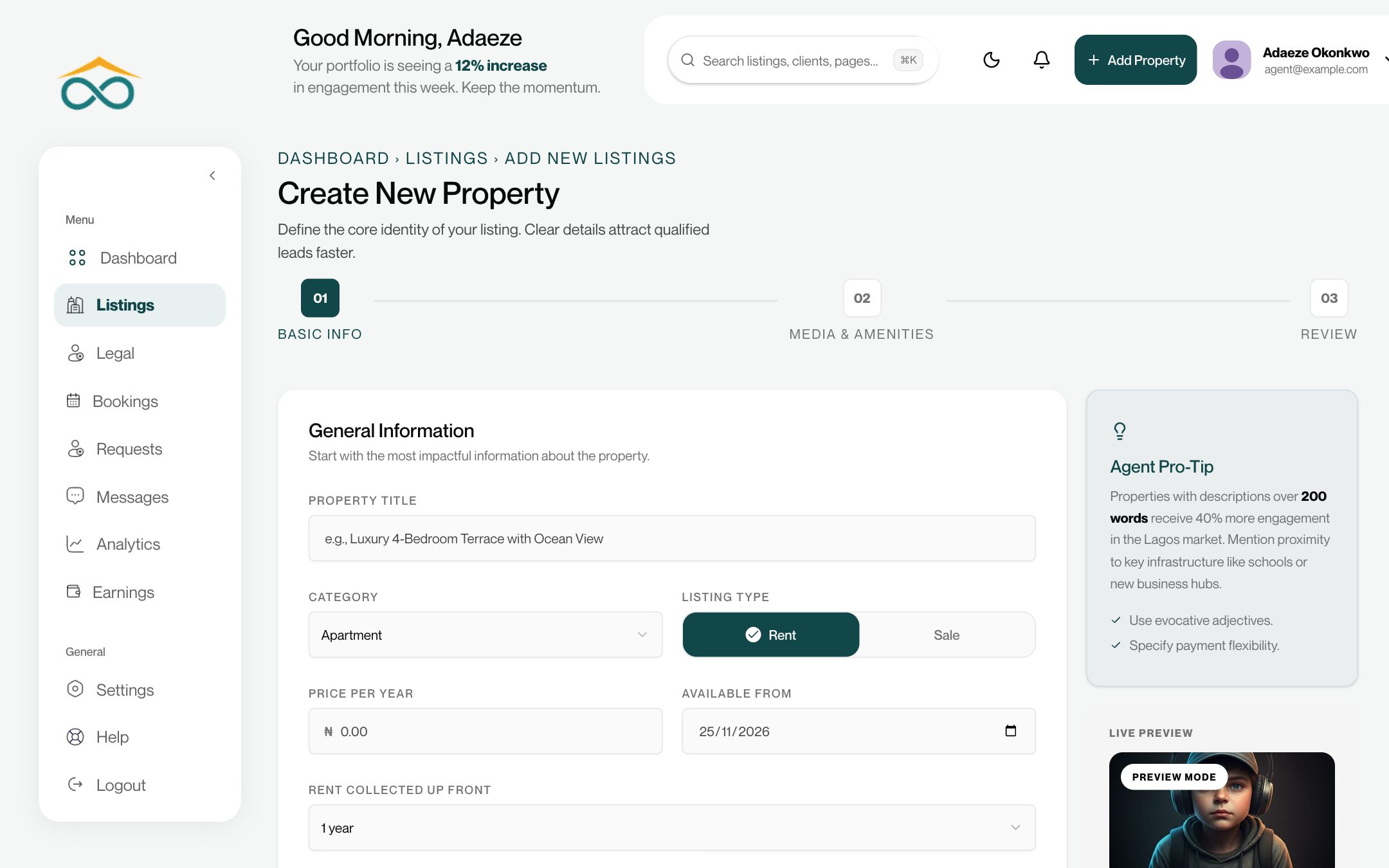
General Information
| Field | Details | Default |
|---|---|---|
| Property Title | Free text | empty |
| Category | Apartment, House, Villa, Land, Commercial, Shortlet, Office | Apartment |
| Listing Type | Rent or Sale toggle | Rent |
| Price | Number, in naira. The label is "Price Per Year" for rent, "Asking Price" for sale and "Price Per Night" for a Shortlet | empty |
| Available From | Date picker | today |
| Rent Collected Up Front | 1 year, 2 years or 3 years. Shown only for a rent listing that is not a Shortlet | 1 year |
| Minimum Nights, Maximum Nights | Numbers. Shown only when Category is Shortlet | 1 and 30 |
| Property Description | Free text | empty |
Location
| Field | Details |
|---|---|
| State | Searchable list of Nigerian states |
| LGA | Searchable list of that state's local government areas. Disabled, reading "Select state first", until a state is chosen. Changing the state clears it |
| Community / Area | Free text |
| Street Address | Google Places autocomplete, limited to Nigeria. Picking a suggestion fills the field and sets the map coordinates |
| Nearest Landmark | The same autocomplete. Picking a suggestion also sets the map coordinates |
Property Details: Bedrooms (default 1), Bathrooms (default 1), Square Feet.
- Fill in the fields. The right-hand column ("Agent Pro-Tip", "Live Preview", "Need assistance?") is static decoration; the preview is a fixed image and does not reflect the form.
- Pick the Street Address or the Nearest Landmark from the dropdown suggestions. Typing without picking leaves the listing with no coordinates.
- Press Continue to Media.
The only check at this step is the map pin. Without one, a toast and a red line under Street Address both read: "This listing has no map location yet. Pick the street address or nearest landmark from the suggestions so it can be pinned on the map."
Cancel Listing returns to /listings straight away, with no confirmation.
One pin, two fields
Step 2: Media and amenities
Header: "Media & Amenities", with "Step 2: Upload high-resolution imagery and define property features."
-
Property Gallery. Choose a group, then drop or browse for photos and crop each one. Full details are in Listing photos and media.
-
Property Amenities. Toggle any of the nine presets. Four start switched on.
Preset On by default Fast WiFi yes Parking no 24/7 Security yes On-site Gym no Swimming Pool yes Air Conditioning no Smart Kitchen no Pet Friendly no Garden yes Select All Common switches on all nine and keeps any custom ones.
-
Custom Amenity opens the dialog "Add a custom amenity" ("Anything this property offers that is not in the list, like a borehole, inverter or boys' quarters."). Type a name and press Add amenity.
Rule Result Empty name "Type the amenity's name." Longer than 40 characters Cut to 40; extra spaces are collapsed Matches a preset's name (any letter case) The preset is switched on instead of adding a duplicate Already on the listing "That amenity is already on this listing." 40 amenities already selected The Custom Amenity tile is disabled Custom amenities appear as tiles with an X to remove them.
-
Press Next Step (labelled "Next Chapter: Pricing & Final Review").
Check Toast Fewer than 4 photos "Add at least 4 photos to continue. You have N." The hint under the gallery title turns red Geotagging on and a photo breaks the rule The specific problem, shown for 10 seconds. See the photos page
Back returns to step 1 with everything kept.
Step 3: Review and publish
Header: "Review & Publish". The left side previews the listing as built from the form: a photo carousel with the group name on each photo, badges ("Preview", the category, and "For rent", "For sale" or "Short let"), title, location, price, Beds, Baths, Sq Ft (and Nights for a Shortlet), the description, address and amenities.
The Listing readiness card counts how many of seven items are ready:
| Item | Ready when | Blocks publishing |
|---|---|---|
| Title | At least 5 characters | yes |
| Description | At least 20 characters | yes |
| Pricing | A price above zero | yes |
| Location | State and LGA both chosen | yes |
| Photos | At least 4 (5 or more recommended) | yes |
| Amenities | At least one selected | no |
| Availability | An available-from date is set | yes |
When something blocking is missing, the Publishing actions card lists it under "N items need attention" and Publish listing is disabled.
-
Press Publish listing to submit, or Save as draft to keep it private.
-
The app reads each photo's GPS position from the original file, then sends one multipart request,
POST /api/v1/property/create:Part Content statusdraft, only when saving a draft. Omitted when publishingtitle,description,typeFrom step 1 locationState, LGA, community, street, landmark and coordinatesas longitude then latitudedetailsBedrooms, bathrooms, square feet pricingrentPrice(rent and Shortlet) orsalePrice,currency(alwaysNGN), andrentDurationYearsfor a rent listingavailabilityavailableFromshortLetShortlet only: minNights,maxNights,nightlyPriceamenitiesPreset ids and custom names imagesOne file per photo, in gallery order. The first is the cover imagesMetadataPer photo: street address, listing coordinates, the photo's own gpswhen it has one, and its group astag -
While the request runs the pressed button shows "Publishing..." or "Saving..." and both buttons are disabled. Uploads can be slow; the client allows up to 5 minutes.
-
On success the app goes to
/listingswith a toast:- Published: "Listing submitted for verification!"
- Draft: "Draft saved. Pick it back up from your listings any time."
-
On failure a toast shows the API message, or "Failed to publish listing. Please try again." / "Failed to save draft. Please try again." The form stays as it was.
States and edge cases
- Nothing is saved until step 3. The form lives in component state only. Reloading, pressing Cancel Listing, or navigating away loses everything, photos included.
- Drafts still need a pin. Save as draft is refused without map coordinates: the form jumps back to step 1 with the location message. A draft may have no price; the price is then left out of the request.
- Duplicate listings. The client has no duplicate check or warning. If the API rejects a listing as a duplicate, its message appears in the failure toast.
- Videos. There is no video upload control. The request always carries an empty video list.
- Zero bedrooms or bathrooms. A value of 0 (for example on Land) is sent as 1, because empty and zero are treated the same. Square feet left empty is sent as 0.
- Shortlet. The Rent and Sale toggle stays visible but is ignored: a Shortlet is always priced per night.
- Currency. There is no currency picker; every listing is created in naira.
- Places not ready. Street Address and Nearest Landmark are disabled until the Google Places script has loaded.
- Geotag rules changed mid-way. The API enforces the same rules on upload, so a photo that passed the client check can still be rejected with an API message.
What happens next
- Published. The listing is created without a draft status, which the app shows as PENDING (
pending_verification) in the listings table. The review screen states: "Publishing submits this listing for verification. Our legal partners review the title documents before it goes live, and buyers cannot pay into escrow until that review clears." - Draft. It appears in the table with a DRAFT badge and is visible only to its owner. To submit it later, open it from the table's pencil icon and follow Edit and publish listings.
- The listings cache is invalidated, so the table and global search include the new listing straight away.