 HomeLink Hub
Wishlist
Saving listings from any property card and managing them on the Wishlist page.
The wishlist is a per-user list of saved listings held on the backend. Listings are saved with the heart on a property card and reviewed on /app/wishlist.
Where it lives
| Route | View / component file | Access |
|---|---|---|
| Heart on any property card | src/components/property-card.tsx | signed-in (signed-out visitors are asked to sign in) |
/app/wishlist | src/views/app/wishlist.tsx, src/components/wishlist-card.tsx | signed-in |
Requests are in src/services/wishlist/wishlist-thunk.ts (RTK Query wishlistApi, cache tag Wishlist).
Before you start
- Signed in. No other precondition.
- Hearts appear on cards on the home page sections, Featured, the app home and search results. There is no heart on the property details page itself.
Flow
Save a listing from a card
- Hover a property card (on touch screens the controls are always visible) and click the heart.
- Signed out: the toast "Please sign in to add properties to your wishlist" appears and the sign-in modal opens. Nothing is saved; after signing in the visitor clicks the heart again.
- Signed in: the app fires
POST /api/v1/wishlist/togglewithpropertyId. - Success: the heart fills and the toast reads "Added to wishlist". Clicking a filled heart sends the same request and the toast reads "Removed from wishlist".
- Failure: a toast with the server's message, or "Failed to update wishlist".
Sold or rented long-term listings show a status badge instead of a heart and cannot be saved from the card.
Review saved listings
- Open Wishlist from the account menu. The page fires
GET /api/v1/wishlist?page=1&limit=50. - The header reads "Wishlist" with "N saved properties" (or "1 saved property").
- Each row shows the photo with its rating, the title, location, price with its period, beds, baths and area.
- Clicking the photo or the details opens
/app/property/:id. - The share button opens the same share menu as on the property page.
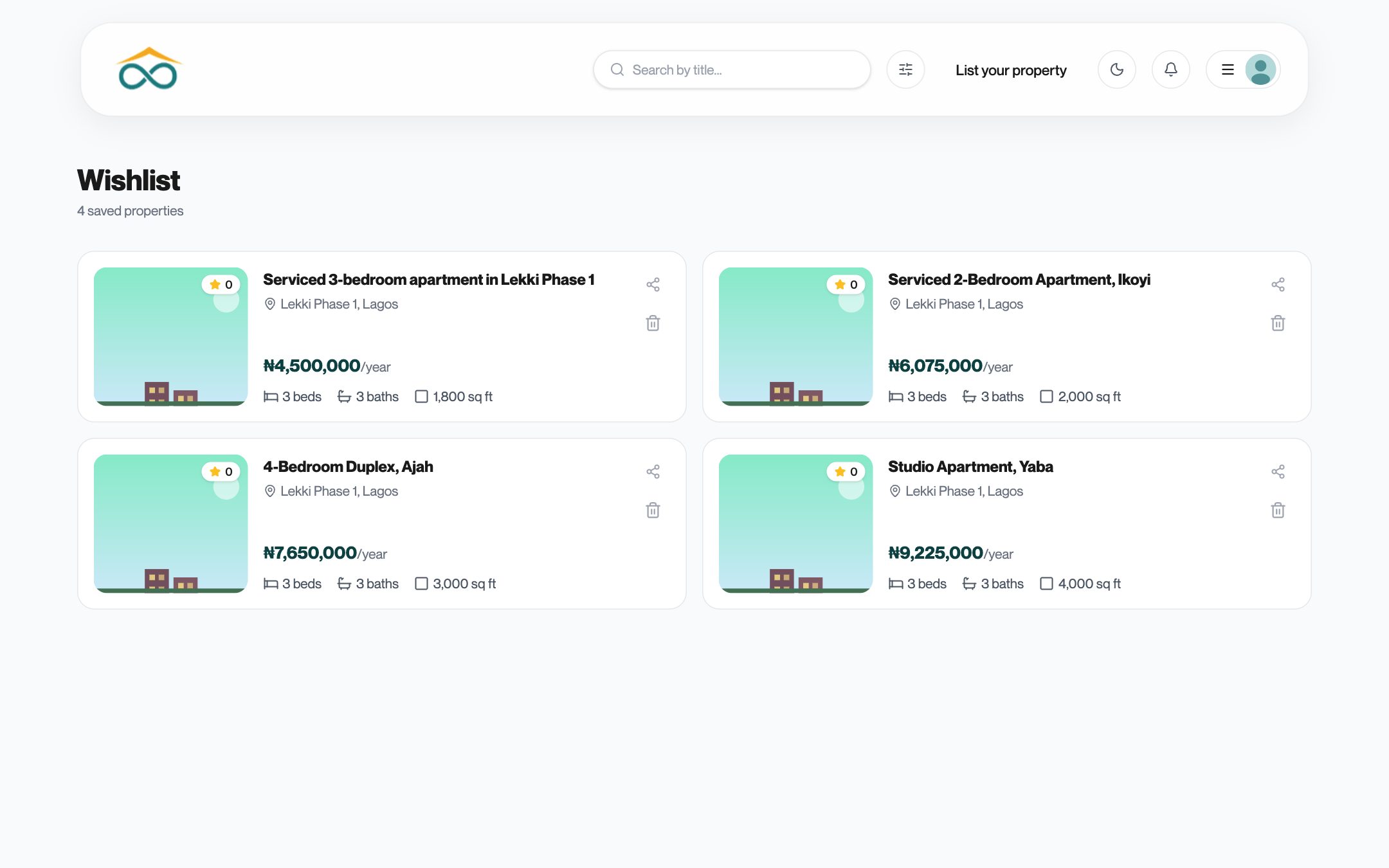
Remove a saved listing
- Click the bin icon (tooltip "Remove from wishlist") on a row.
- The app fires
POST /api/v1/wishlist/togglewithpropertyId. There is no confirmation step. - Success: toast "Removed from wishlist" and the list refetches, so the row disappears.
- Failure: a toast with the server's message, or "Failed to remove from wishlist".
States and edge cases
- Loading. A spinner with "Loading wishlist...".
- Empty. "Your wishlist is empty", "Save properties you love to revisit them later." and Browse Properties (to
/app). - Error. "Error loading wishlist. Please try again later." with Go Back (to
/app). A signed-out visitor who opens the URL directly ends up here, or on/auth/signinif the API's 401 message mentions the token. - Cap. The page requests the first 50 saved listings and has no pagination.
- Short-lets. Wishlist rows read the price from the rent or sale price only, so a short-let priced per night can show ₦0 here.
Hearts do not remember saved listings
A card's heart starts empty every time it renders: the card keeps the saved state locally and nothing preloads which listings are already in the wishlist. After a reload, a saved listing shows an empty heart, and clicking it calls the toggle endpoint, which removes the listing while the UI shows it as "Added to wishlist". Use the Wishlist page as the source of truth when testing.
Endpoints defined but unused
wishlistApi also defines POST /api/v1/wishlist/add, POST /api/v1/wishlist/remove and GET /api/v1/wishlist/check/:propertyId. No screen in this app calls them; every add and remove goes through the toggle endpoint.
What happens next
Saving or removing a listing only changes the user's own list. The code shows no notification to the agent and no other side effect in this app. The same account's wishlist is what the mobile app shows, since it is stored on the backend.