 HomeLink Hub
Account and Settings
The Account page, covering profile details, identity verification, notification preferences, password, two-factor authentication and account deletion.
The Account page has three tabs: Profile, Notifications and Security. It reads the user from localStorage first so the form is filled instantly, then replaces those values with the profile from the API.
Where it lives
| Route | View / component file | Access |
|---|---|---|
/app/account | src/views/app/account.tsx | signed-in |
| Identity verification dialog | src/components/kyc/youverify-modal.tsx | signed-in |
Requests are in src/services/user/user-thunk.ts (RTK Query userApi, base path /api/v1/user, cache tag User).
Before you start
- Signed in. The page fires
GET /api/v1/user/profileon open. - Changing the password, disabling two-factor authentication and deleting the account each need the current password.
Flow
Update personal information (Profile tab)
- The header shows the avatar, the full name and a "Verified Account" label.
- Personal Information has five fields: First Name, Last Name, Email Address, Phone Number and City. None has client-side validation.
- Save Changes (reads "Saving..." while busy) fires
PUT /api/v1/user/personal-infowithfirstName,lastNameandphone. - On success the stored
userinlocalStorageis updated with the same three values and the profile is refetched. There is no success toast. - On failure nothing is shown to the user; the error is only logged to the browser console.
Email and City are not saved
The Email Address and City fields can be edited, but Save Changes only sends first name, last name and phone. Edits to the other two are discarded on the next load. Also not wired up: the camera button on the avatar has no handler, and the "Verified Account" label is fixed text that does not reflect email or KYC status.
Verify identity (Profile tab)
- The Identity Verification card shows KYC Status. Unverified users see "Verify your identity to unlock all features." and Verify Now; verified users see "Your identity has been verified." and a Verified badge. The value comes from
isKYCVerifiedon the profile. - Verify Now opens the dialog "Identity Verification".
- Field National Identity Number (NIN): digits only, exactly 11. Other characters are stripped as the user types and the submit button stays disabled until there are 11 digits. Submitting any other length shows the toast "Please enter a valid 11-digit NIN."
- Verify Identity (reads "Verifying..." while busy) fires
POST /api/v1/auth/kyc/verifywithkycType: "NIN"andnin. - Success: toast "Identity verified successfully!", the dialog closes and the profile refetches, so the card switches to Verified.
- Failure: a toast with the server's message, or "Verification failed. Please check your NIN and try again."
The dialog states that the NIN "is securely verified directly against the NIMC database via Youverify".
Notification preferences (Notifications tab)
- A grid lists five notification types against three channels: In-app, Email and SMS. The SMS column is labelled "Soon", always shows off and cannot be clicked.
| Type | Description shown | Default In-app | Default Email |
|---|---|---|---|
| New property matches | Get notified when a new listing matches your search | on | on |
| Escrow updates | Real-time updates on your transaction progress | on | on |
| Agent messages | Receive messages from agents and landlords | on | on |
| Price drop alerts | Get notified when a saved property drops in price | off | on |
| Promotional emails | News, tips, and offers from Homelink Hub | off | on |
- Saved values from the profile's
notificationPreferencesreplace the defaults when the profile loads. - There is no save button. Two seconds after the last toggle the app fires
PUT /api/v1/user/notification-preferenceswith all five types, each as an object ofinApp,emailandsmsflags. - Failures are logged to the console only; the switches keep their new position.
The same debounced save also fires about two seconds after the page opens and again after the profile loads, even if nothing was changed.
Change password (Security tab)
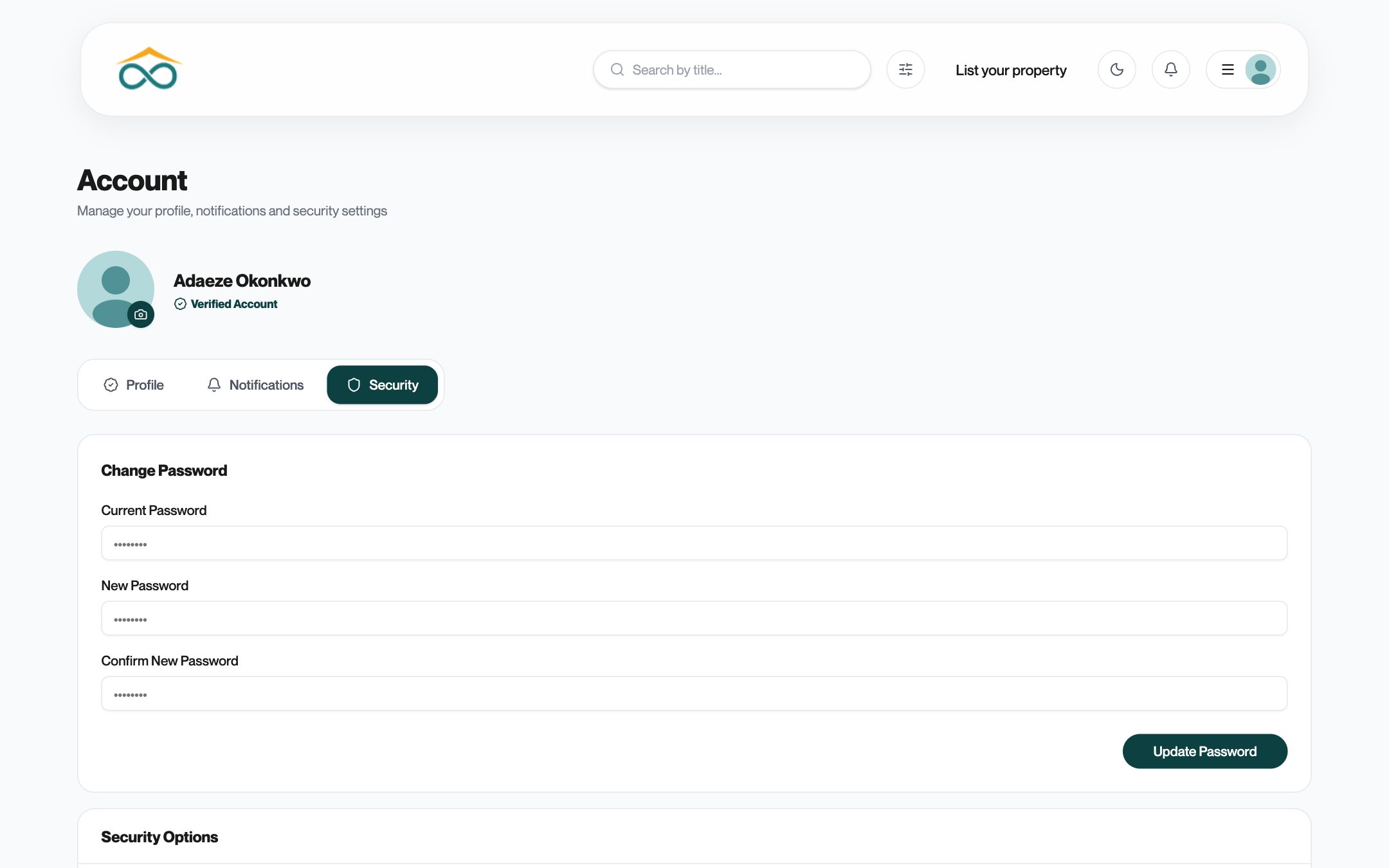
- Fields: Current Password, New Password and Confirm New Password.
- Update Password (reads "Updating..." while busy) checks, in order: all three filled ("All fields are required"), the two new values match ("New passwords do not match"), and the new password has at least 4 characters ("New password must be at least 4 characters").
- It fires
POST /api/v1/user/change-passwordwithcurrentPasswordandnewPassword. - Success: the fields clear and "Password changed successfully!" shows for 3 seconds. The user stays signed in.
- Failure: the server's message, or "Failed to change password", shows under the fields.
Two-factor authentication (Security tab)
- Under Security Options, the Two-Factor Authentication row shows Enabled or Disabled from
twoFactorEnabledon the profile. Clicking it opens a modal. - Enable: the modal "Enable Two-Factor Authentication" has no fields. Enable fires
POST /api/v1/user/enable-2fa. - Disable: the modal "Disable Two-Factor Authentication" asks for Password ("Password is required" when empty). Disable fires
POST /api/v1/user/disable-2fawithpassword. - On success the modal closes. On failure the server's message, or "Failed to update 2FA", shows in the modal.
Two-factor setup looks incomplete
The enable response includes a secret, but the UI never shows it or a QR code, and there is no step to enter a code. Neither call refetches the profile, so the row keeps its old Enabled or Disabled label until the page is reloaded. The sign-in form also has no step for entering a two-factor code.
Delete account (Security tab)
- Click Delete Account. The modal warns "This action cannot be undone. All your data will be permanently deleted. Please enter your password to confirm."
- Enter Password ("Password is required" when empty) and click Delete Account (reads "Deleting..." while busy).
- The app fires
DELETE /api/v1/user/accountwithpasswordin the request body. - Success: the browser is sent to
/with a full page load. - Failure: the server's message, or "Failed to delete account", shows in the modal.
Local session is not cleared after deletion
The delete handler does not remove the token, refresh token or user from storage before redirecting. Until the next API call returns a token error, the navbar can still show the deleted user as signed in.
States and edge cases
- Loading. There is no spinner; the form shows the stored user until the profile arrives.
- Profile request fails. No error is shown. The form keeps the stored values and the KYC card shows the unverified state.
- Active Sessions. The row is present ("View and manage devices logged into your account") but clicking it does nothing; it is marked as a to-do in the code.
- Password rule mismatch. This form accepts 4 characters, while sign-up needs 8 and the reset page needs 8 with mixed case, a number and a symbol. The backend's own rule decides what is finally accepted.
- Signed out. The page renders with empty fields; the profile request fails or redirects to sign-in.
What happens next
- A changed name or phone shows in the navbar after the next render, since the navbar reads the stored user.
- Notification preferences are read by the backend when it decides which channels to use; the in-app column covers both the Notifications page and phone push.
- Identity verification sets
isKYCVerifiedon the account. This app does not gate any of its own screens on it.