 HomeLink Hub
Assignments
The lawyer's list of property verification assignments, its status tabs, paging and what each status means.
Where it lives
| Route | View file | Access |
|---|---|---|
/legal/assignments | src/views/lawyer/assignments/lawyer-assignments.tsx | lawyer |
/legal/assignments?status=in_review&page=2 | same page, with a status tab and page selected | lawyer |
Opening one assignment is covered in Reviewing an assignment.
Before you start
- Signed in with the
LAWYERrole. - An assignment exists only after a contracted agent or landlord assigns one of their listings to the lawyer, or the platform assigns its default legal partner to a new listing automatically.
Flow
Browse the list
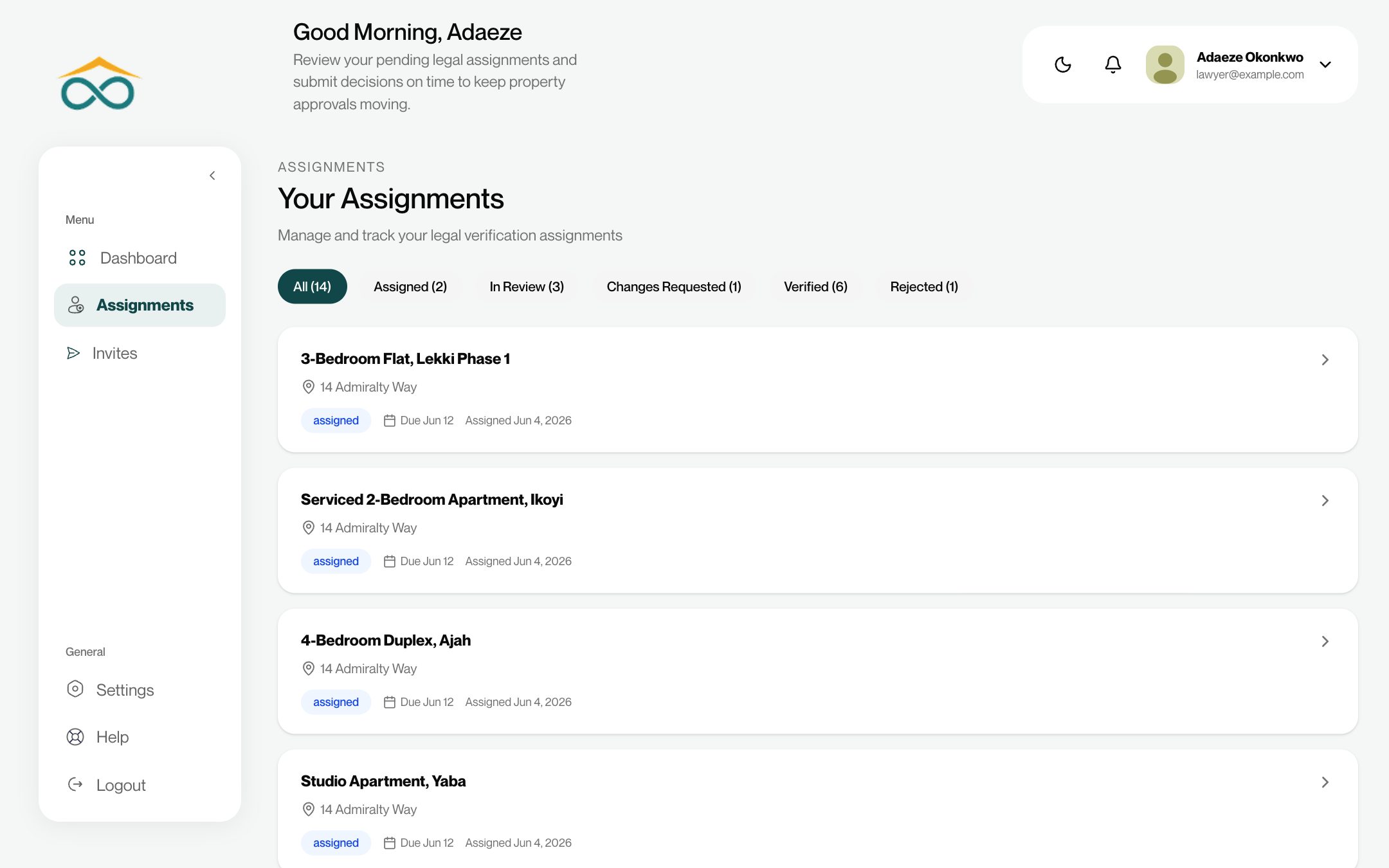
- Choose Assignments in the sidebar. The page is headed "Your Assignments" with "Manage and track your legal verification assignments".
- It sends
GET /api/v1/legal/assignments?page=1&limit=10, adding&status=...when a tab is selected. The response carries the page of assignments, the paging totals and a count per status. - The status tabs are All, Assigned, In Review, Changes Requested, Verified and Rejected. A tab shows its count in brackets when the count is above zero. The counts cover every page and ignore the selected tab.
- Assignments are listed newest first, ten per page. Each card shows:
- The listing's first photo and title.
- The street (or the community when there is no street).
- Bedrooms and bathrooms, as "3BR · 2BA".
- A status badge: the status with underscores shown as spaces.
- "Due (date)" when the partner set a due date.
- "Assigned (date)".
- Click a card to open
/legal/assignments/{id}.
Filter and page
- Clicking a tab writes
?status=to the URL and returns to page 1. All removes the parameter. - Below the list the page reads "Showing X to Y of Z assignments". With more than one page, previous and next arrows appear around "Page N of M". Page 1 is left out of the URL; later pages add
?page=. - Because the tab and page live in the URL, refreshing the browser or coming back from an assignment returns to the same view. An unknown
statusvalue in the URL is treated as All. - While a new tab or page is loading, the current cards stay on screen at reduced opacity.
Status reference
| Status | Badge text | Meaning | Who moves it on |
|---|---|---|---|
assigned | assigned | New work waiting for the lawyer to accept | Lawyer, with Accept Assignment |
accepted | accepted | Accepted, review not started | Lawyer, with Start Review |
in_review | in review | Review in progress | Lawyer, with Submit Decision |
changes_requested | changes requested | Lawyer asked the lister for changes or documents | Lister, by sending documents (returns to in_review) |
verified | verified | Lawyer verified the property. Final | nobody |
rejected | rejected | Lawyer rejected the property. Final | nobody |
reassigned | reassigned | The assignment was replaced by one for another lawyer. Final | nobody |
No tab for accepted or reassigned
Assignments in
accepted or reassigned are only visible under All. An assignment the lawyer has accepted but not yet started is therefore easy to miss: it is on neither the Assigned tab nor the In Review tab.States and edge cases
| Situation | What the user sees |
|---|---|
| First load | Centred spinner in place of the page |
| No assignments for the selected tab | A card reading "No assignments found" |
| Listing has no photo | The card shows without an image |
?page= is beyond the last page (for example after a tab empties) | The URL is pulled back to the last page once the response arrives |
| A new assignment is made while the page is open | Not shown until a reload or an action that refetches. A "New Legal Assignment" notification arrives in the bell |
| Request fails | The page shows "No assignments found" with every tab count hidden. There is no error message |
What happens next
- Open an assignment to accept it, start the review and decide, see Reviewing an assignment.
- The counts on the Dashboard are worked out from the same assignments.