 HomeLink Hub
Reviewing an assignment
The assignment detail page, from accepting the work and starting the review to reading the lister's documents and submitting a decision.
Where it lives
| Route | View file | Access |
|---|---|---|
/legal/assignments/:id | src/views/lawyer/assignments/assignment-detail.tsx | the lawyer the assignment belongs to |
Shared component: src/components/legal-document-submissions.tsx (the document list, also shown to the lister on the listing page).
Before you start
- Signed in with the
LAWYERrole, and the assignment is yours. - The three actions are strictly ordered. Each button appears only in one status, and the API rejects anything out of order.
| Current status | Button shown | Next status |
|---|---|---|
assigned | Accept Assignment | accepted |
accepted | Start Review | in_review |
in_review | Submit Decision | verified, rejected or changes_requested |
| anything else | none, "This assignment has been completed" |
Flow
Read the assignment
- Click a card on
/legal/assignments. The page loadsGET /api/v1/legal/assignments/{assignmentId}. - The header shows "Assignment Details", the listing title, the status badge and "Assigned (date)". The back arrow returns to
/legal/assignments. - The left column shows:
- The first photo with an "N photos" chip, and up to six thumbnails. Clicking any of them opens the "Property Gallery" dialog with previous and next arrows.
- Property Information: Location (street, community, state), Property Details (bedrooms and bathrooms) and Pricing (rent per year, else the sale price, else "N/A").
- Assignment Notes: what the lister wrote when assigning, or "No assignment notes provided".
- Submitted Documents, when the lister has sent any.
- Legal Decision, once a decision exists.
- The right column is the Actions card. Below the button, a yellow box shows "Due Date: (date)" when the lister set one.
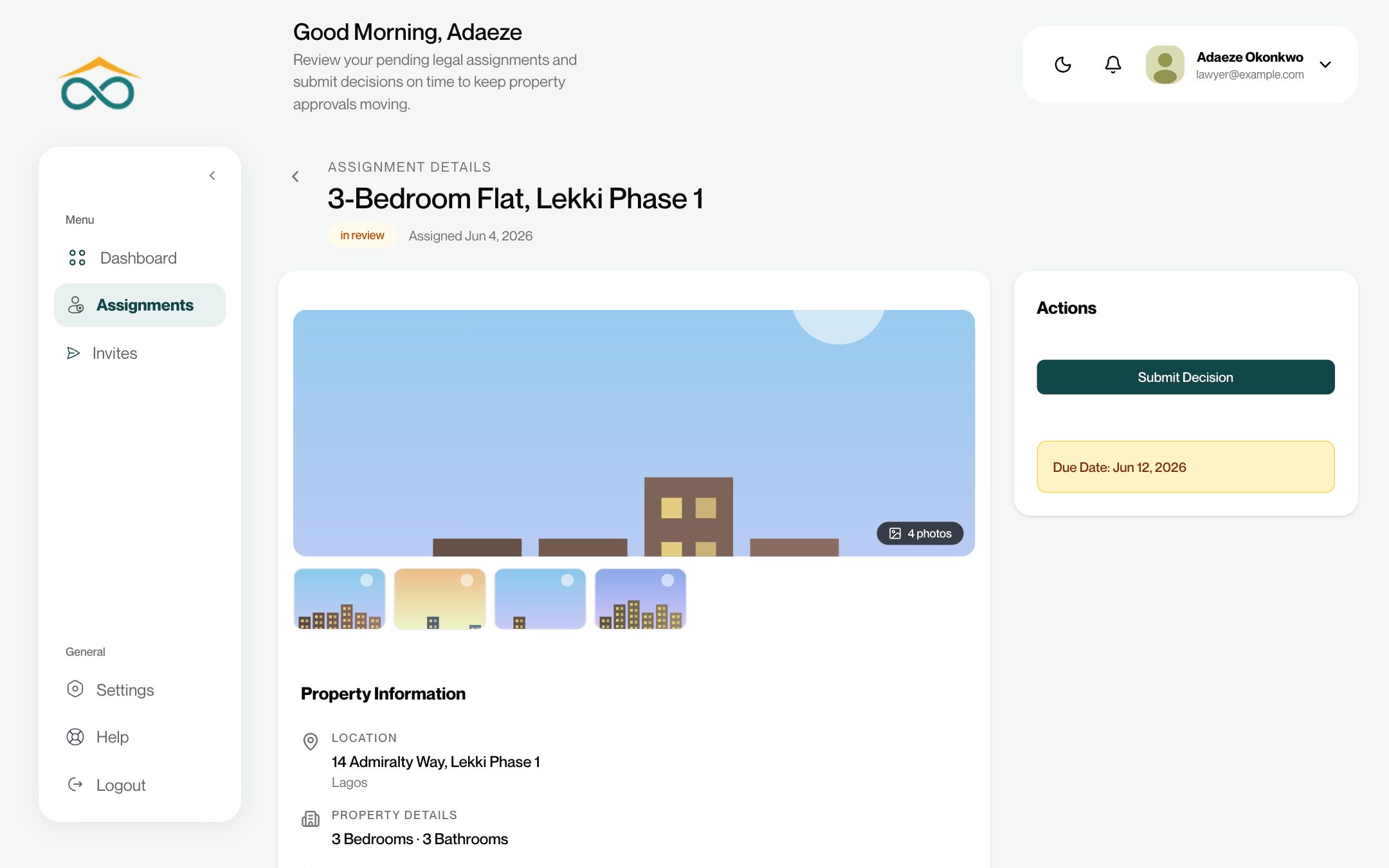
Accept the assignment
- With status
assigned, press Accept Assignment ("Accepting..." while it runs). - The app sends
PATCH /api/v1/legal/assignments/{assignmentId}/accept. - A toast reads "Assignment accepted successfully". The status becomes
acceptedand the button changes to Start Review. - On failure the toast shows the API message, such as "Cannot accept assignment. Current status is 'accepted', expected 'assigned'", or "Failed to accept assignment".
There is no decline button. A lawyer who cannot take the work has to tell the lister outside the app.
Start the review
- With status
accepted, press Start Review ("Starting..."). - The app sends
PATCH /api/v1/legal/assignments/{assignmentId}/start-review. - A toast reads "Review started successfully". The status becomes
in_reviewand the button changes to Submit Decision. - On failure the toast shows the API message ("Cannot start review. Current status is '...', expected 'accepted'"), or "Failed to start review".
Review the documents
- The Submitted Documents card ("Sent by the lister for this review. Newest first.") lists each batch the lister sent.
- A batch shows "Sent (date) at (time) by (name)", the lister's note, and one link per file with its size.
- Clicking a file opens it in a new browser tab.
- The card is hidden until the lister has sent at least one batch.
Documents flow one way
Submit a decision
-
With status
in_review, press Submit Decision. The "Submit Legal Decision" dialog opens. -
Fill in:
Field Options and rule Decision Outcome One of Verified, Rejected, Changes Requested. Required Decision Notes ("Explain your decision...") Free text. Must not be empty after trimming. This is where the reasons for a rejection or change request go -
Submit Decision stays disabled until an outcome is chosen and notes are typed. Cancel closes the dialog and clears both.
-
The app sends
PATCH /api/v1/legal/assignments/{assignmentId}/decisionwith{ "outcome": "verified", "notes": "..." }. The outcome isverified,rejectedorchanges_requested. -
A toast reads "Decision submitted successfully". The dialog closes and the page refetches.
-
On failure the toast shows the API message, or "Failed to submit decision".
Cause Message Outcome or notes missing (client check) "Please select an outcome and add notes" Outcome or notes missing (API check) "Decision outcome and notes are required" Assignment is not in review "Cannot submit decision. Current status is '...', expected 'in_review'"
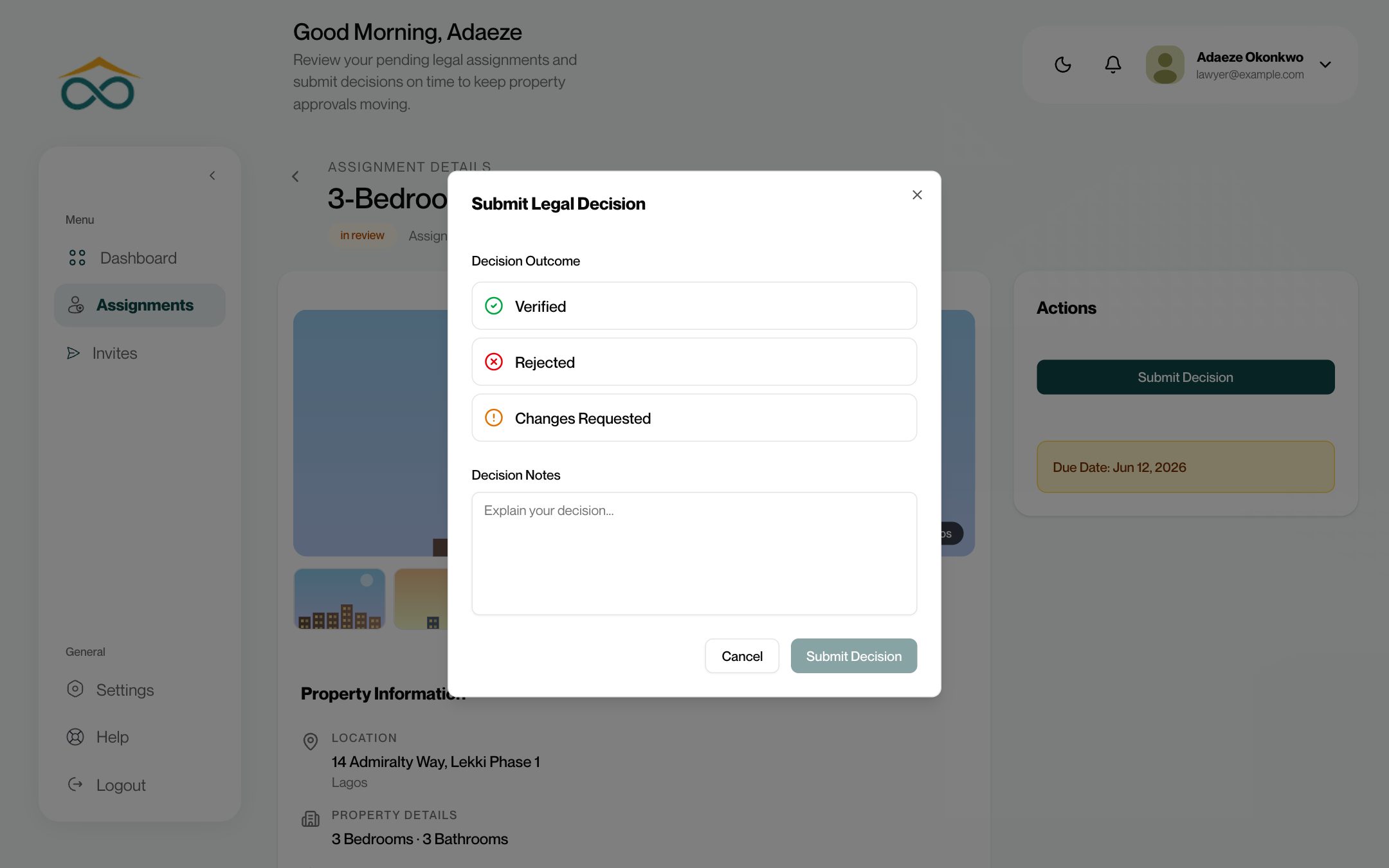
What each outcome does:
| Outcome | Assignment status | Listing |
|---|---|---|
| Verified | verified | legalStatus becomes legally_verified, and the lawyer, time and notes are stored as the verification. A listing waiting in pending_verification becomes listed, unless an open duplicate flag is holding it |
| Rejected | rejected | legalStatus becomes legally_rejected |
| Changes Requested | changes_requested | legalStatus becomes changes_requested |
After any decision, a Legal Decision card shows the outcome with an icon, the "Decision Notes:" and "Decided on (date) at (time)".
No checklist in the form
checklist with each decision (an item, a status of pass, fail or comment, and a comment). The dialog does not offer one, so decisions are sent with notes only.After a change request
- The status is
changes_requestedand the Actions card shows no button. - The lister sees the lawyer's notes on their listing and uploads the requested documents.
- That upload moves the assignment back to
in_review. The lawyer receives the notification "New Documents to Review", the new batch appears at the top of Submitted Documents, and Submit Decision is available again. - The previous decision stays visible in the Legal Decision card until a new decision replaces it.
Misleading text while waiting on the lister
changes_requested the Actions card reads "This assignment has been completed", the same text used for verified, rejected and reassigned assignments. The assignment is not finished; it is waiting for the lister's documents.States and edge cases
| Situation | What the user sees |
|---|---|
| Loading | Centred spinner |
| Unknown id, someone else's assignment, or a failed request | "Assignment not found" with a Back to assignments button |
| Listing has no photos | The photo block is omitted |
| Lister sends documents while the page is open | Nothing changes until the page is reloaded |
Status verified, rejected or reassigned | No action button. A decision cannot be changed from this app |
What happens next
- Accept: the person who assigned the listing gets the in-app notification "Legal Review Started".
- Start review: that person is emailed "Legal Review Has Started".
- Decision: that person gets the notification "Legal Review Decision: (outcome)". Their listing page shows the new legal status, and after a change request it shows the lawyer's notes with a Submit requested documents button. See Legal verification.
- A verified property can go live on the consumer app, as described in the outcome table above.