 HomeLink Hub
Users
The user table, search and filters, CSV export, the user detail dialog with its Properties and Legal Work tabs, and activating, deactivating and re-roling accounts.
Where it lives
| Route | View / component | Access |
|---|---|---|
/dashboard/users | src/views/users/Users.tsx | Admin only |
| (dialog) | src/views/users/UserDetailDialog.tsx | Opened from a row |
| (dialog tab) | src/views/users/UserPropertiesPanel.tsx | Agents, landlords, developers |
| (dialog tab) | src/views/users/UserLegalPanel.tsx | Lawyers |
Also: src/views/users/user-columns.tsx (columns and filter options), src/views/users/user-format.ts (KYC status, CSV), src/services/users/users-thunk.ts, src/services/users/users-slice.ts (Redux slice users). Server side: service/src/controllers/admin.controller.ts.
Before you start
- Signed in as an admin.
- The whole user list is loaded in one request and searched, filtered, sorted and paged in the browser.
Flow
Browse the table
- Opening the page sends
GET /api/v1/admin/users. The result is stored inusers.users. - Four cards summarise the loaded list:
| Card | Value | Line underneath |
|---|---|---|
| Total users | Number of users | "Every role, including admins" |
| Active | Users with an active account | "N% of users" |
| KYC verified | Users whose KYC status is VERIFIED | "N% of users" |
| Joined this month | Users created since the 1st (browser time) | "Since the 1st" |
- The table columns:
| Column | Shows | Sortable | Notes |
|---|---|---|---|
| (checkbox) | Row selection; the header box selects every row on the current page | No | |
| User | Avatar or initials, full name, email | Yes | Cannot be hidden |
| Role | TENANT, LANDLORD, AGENT, LAWYER, DEVELOPER or ADMIN | Yes | |
| KYC | VERIFIED, PENDING or REJECTED | Yes | From the KYC record; older accounts fall back to the verified flag |
| Status | Green dot "Active" or red dot "Inactive" | Yes | |
| Phone | Phone number or a dash | No | Hidden by default |
| Email verified | "Yes" or "No" | No | Hidden by default |
| Joined | Sign-up date | Yes | Default sort, newest first |
| (actions) | Three-dot menu | No |
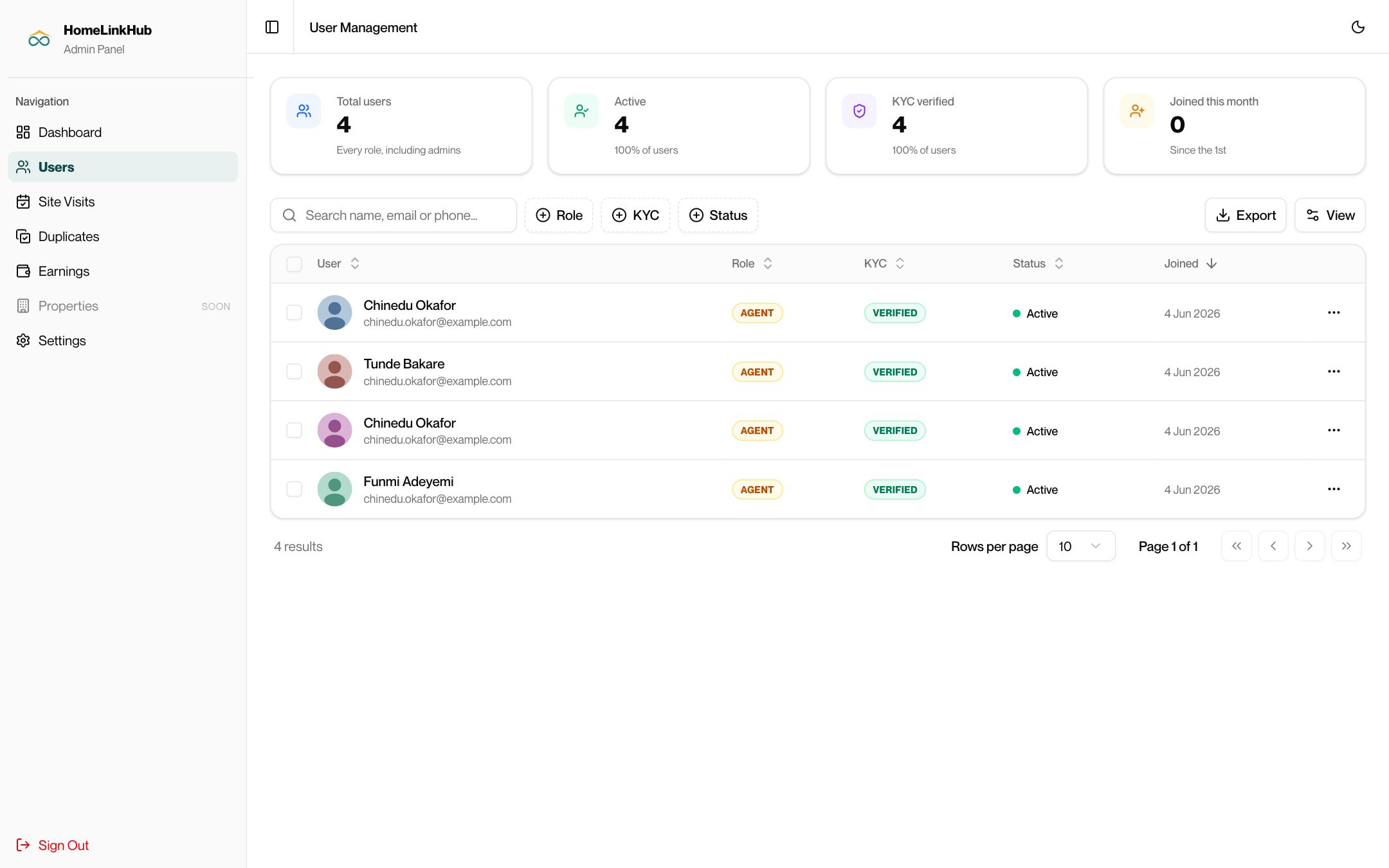
- Toolbar, left to right:
- Search box "Search name, email or phone…". Matches first name, last name, email, phone and business name.
- Filter buttons "Role" (Tenant, Landlord, Agent, Lawyer, Developer, Admin), "KYC" (Verified, Pending, Rejected) and "Status" (Active, Inactive). Each allows several ticks at once.
- "Reset" appears once a search or filter is active and clears them all.
- "Export" downloads every row that matches the current search and filters, in the current sort order.
- "View" opens "Toggle columns" to show or hide Role, KYC, Status, Phone, Email verified and Joined.
- Click a sortable column header for "Ascending", "Descending" or "Hide column".
- Under the table: the result count ("N results"), "Rows per page" (10, 20, 30, 50, 100) and first, previous, next and last page buttons. The page is kept in the URL as
?page=2.
Select rows and export
- Tick one or more rows. The toolbar is replaced by a bar reading "N selected".
- "Copy emails" copies the selected users' emails, comma separated; the button reads "Copied" for a moment.
- "Export CSV" downloads only the selected rows. "Clear" drops the selection.
- Both exports create
homelinkhub-users-YYYY-MM-DD.csvwith the columns First name, Last name, Email, Phone, Role, KYC, Active, Email verified, Joined. The file is built in the browser; no request is sent.
Open a user
- Click a row (or focus it and press Enter), or choose "View details" from the row's three-dot menu. The user is stored in
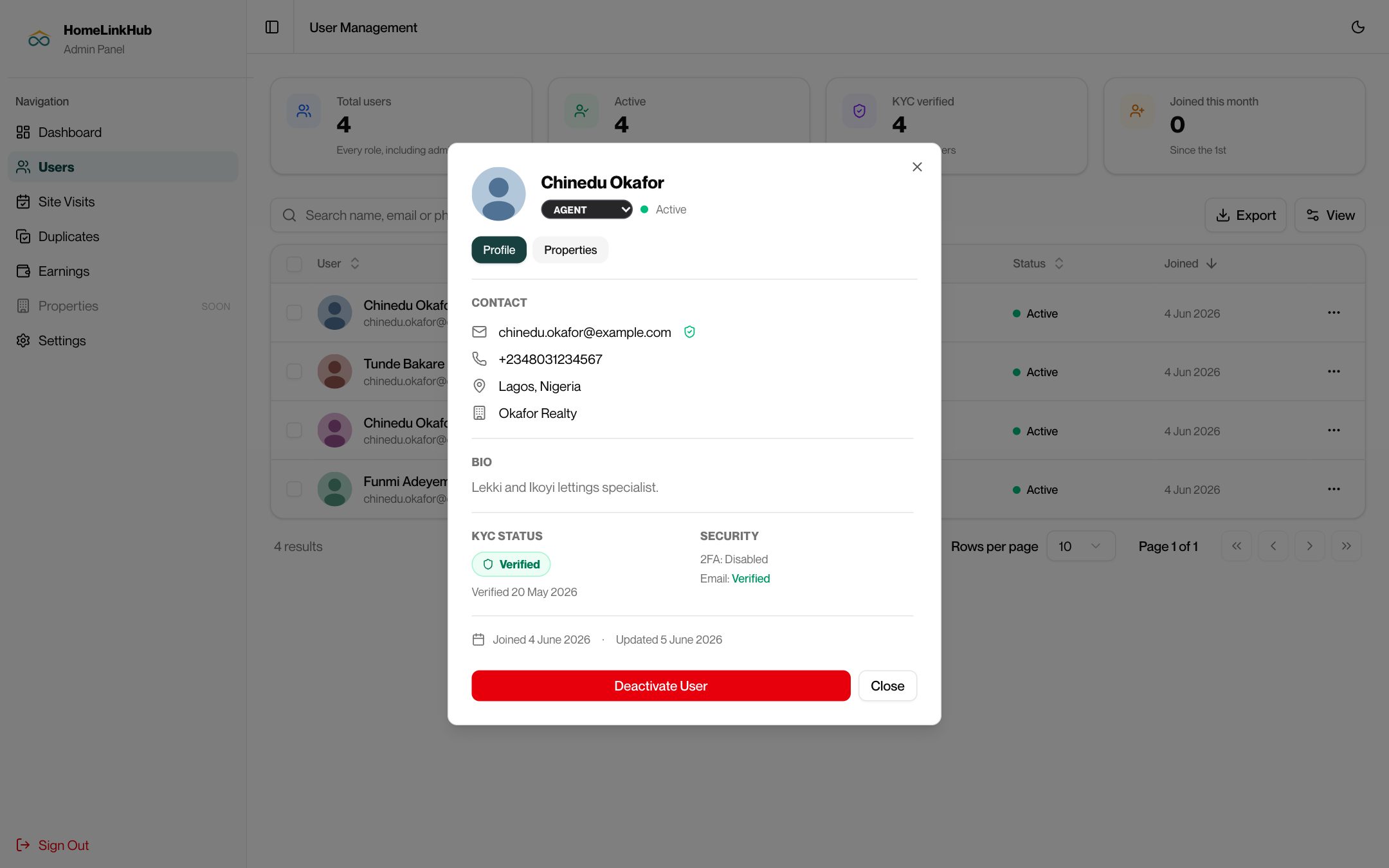
users.selectedUserand the dialog opens. - The header shows the avatar or initials, the name, a role drop-down and the Active or Inactive indicator.
- Roles with listed or legal work get two tabs. Tenants and admins have no tabs and see the profile only.
| Role | Tabs |
|---|---|
AGENT, LANDLORD, DEVELOPER | "Profile", "Properties" |
LAWYER | "Profile", "Legal Work" |
- The "Profile" content:
- "Contact": email (with a green shield when the email is verified), phone, state and country, business name. Missing items are left out.
- "Bio", when the user has one.
- "KYC Status": Verified, Pending or Rejected, with "Verified
date" when known. - "Security": "2FA: Enabled" or "Disabled"; "Email: Verified" or "Unverified".
- "Joined
date· Updateddate".
- The footer always has "Deactivate User" or "Activate User", and "Close".
Properties tab
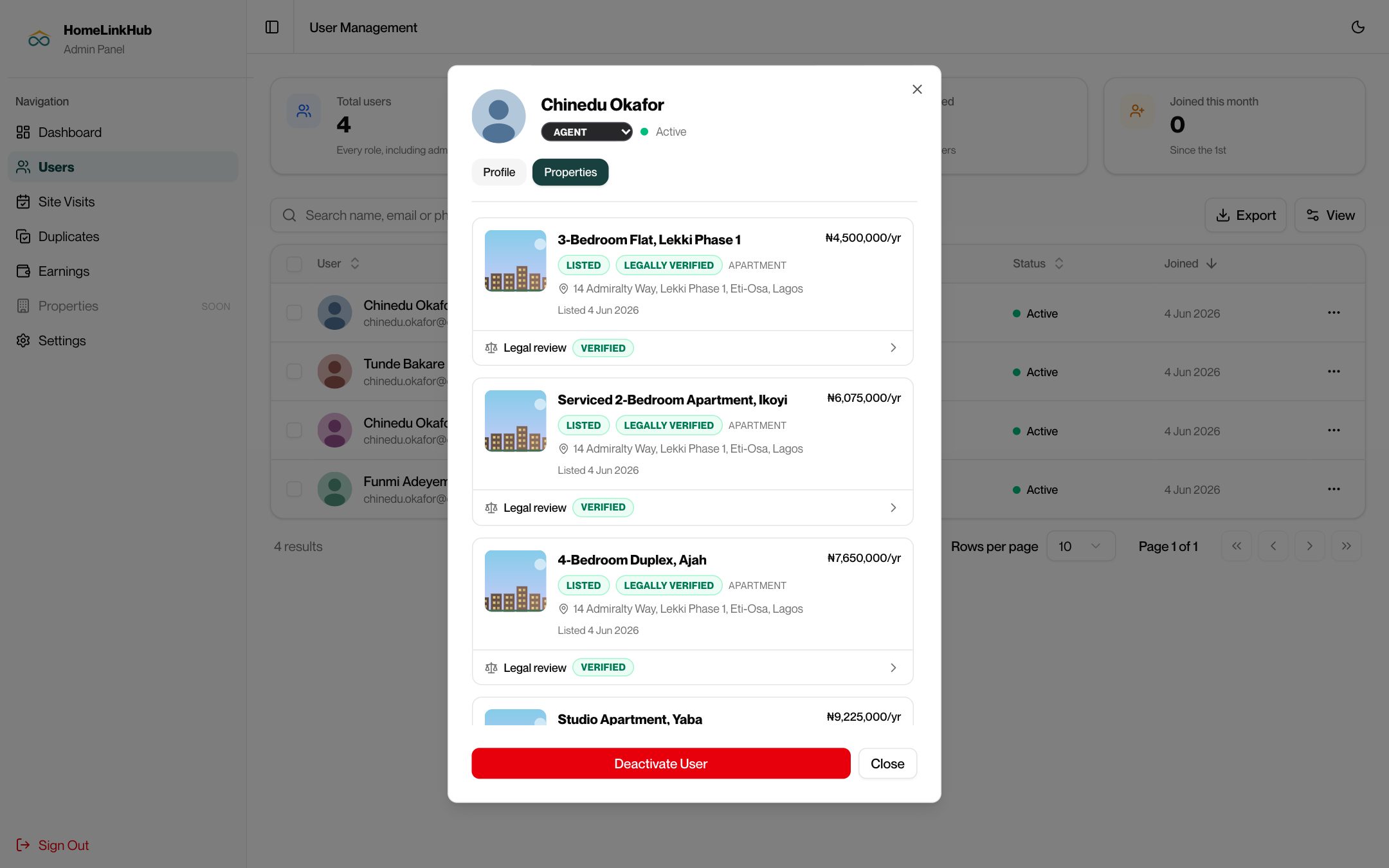
- Click "Properties". The first time for this user the app sends
GET /api/v1/admin/users/{id}/properties; the result is stored inusers.userProperties. - Each property card shows a thumbnail, title, price (sale price, or yearly rent as "
amount/yr", with "(N yrs up front)" for multi-year terms), status and legal-status badges, type, location and "Listeddate". Deleted listings stay in the list with a dashed border and a "Deleted" badge. - Click the "Legal review" row on a card to expand it. The row shows the review status, or "never assigned".
- An expanded review shows "Reviewed by", "Decided", "Outcome", "Checklist" (tick for pass, cross for fail, with any comment), "Notes", "Documents reviewed" (links labelled "Image 1", "Video 1" and so on that open in a new tab) and "Documents submitted by lister" (newest batch first, with sender, note and file sizes).
- Only one review is expanded at a time.
Legal Work tab
- Click "Legal Work" on a lawyer. The first time, the app sends
GET /api/v1/admin/users/{id}/legal-assignments; the result is stored inusers.legalAssignmentsandusers.legalCounterparties. - "Working with (N)" lists the agents and landlords behind the lawyer's assignments: name, role, "N properties" and an "Active" badge if any of that work is still open, otherwise "Past".
- "Assigned properties (N)" lists each assignment: property title, assignment status, "listing:
status", legal status, a "Deleted" badge where relevant, and "Assigneddate· duedate". - Click an assignment to expand it: "Listed by", "Assigned by", "Decision" with its date, the decision notes, "Documents reviewed" and "Documents submitted by lister".
Activate or deactivate a user
- Use "Deactivate" or "Activate" in the row's three-dot menu, or "Deactivate User" or "Activate User" in the dialog footer.
- The app immediately sends
PATCH /api/v1/admin/users/{id}/statuswith body{ "isActive": false }(ortrue). - On success the row, the dialog and the "Active" card update from the Redux
usersslice. There is no list refetch.
Change a role
- In the dialog header, pick a new value in the role drop-down (
TENANT,LANDLORD,AGENT,LAWYER,DEVELOPER,ADMIN). - The app immediately sends
PATCH /api/v1/admin/users/{id}/rolewith body{ "role": "AGENT" }. - On success the row badge and the dialog update, and the dialog's tabs change to match the new role.
No confirmation and no feedback on failure
Status and role changes fire on the first click, with no confirmation dialog and no success message. If the request fails, the view shows nothing and the row keeps its old value. The server does not stop an admin from deactivating or demoting their own account, so take care.
Other row actions
- "Copy email" in the three-dot menu copies that user's email to the clipboard.
States and edge cases
- Loading: skeleton rows in the table and skeleton values in the cards on first load.
- List error: a red banner "Failed to fetch users" with a "Retry" button that refetches.
- Empty or no match: "No users found" / "Try a different search or clear the filters."
- Tab loading: three skeleton blocks. Tab error: "Failed to fetch user properties" or "Failed to fetch legal assignments" in red; switch tabs to try again.
- Empty tabs: "This user has not listed any properties." and "This lawyer has not been assigned any properties to verify."
- A property with no review shows "This property has never been assigned for legal verification, so there are no documents on file." A review with no files shows "No documents were attached to this review."
- An assignment whose property no longer exists is titled "Property no longer available".
- Opening a different user clears the previous user's tab data straight away, so one user's properties are never shown under another's name.
- If you change a user's role while their work tab has already been loaded, the new tab can appear empty because the data is not refetched. Close and reopen the dialog.
- Changing search, filters or sorting returns the table to page 1. Editing a user does not.
What happens next
- Deactivated accounts are refused at sign-in with "Your account has been deactivated. Please contact support." In the service code read for this guide, the active flag is checked at sign-in only, so a session that is already open is not ended by deactivation.
- Deactivated lawyers disappear from the "Default lawyer" list in Platform settings. If the saved default lawyer is deactivated or re-roled, that page warns that new listings are no longer being assigned.
- The API reads a user's role from the database on every request, so a role change applies to their permissions straight away. Changing someone to
ADMINgives them access to this panel.